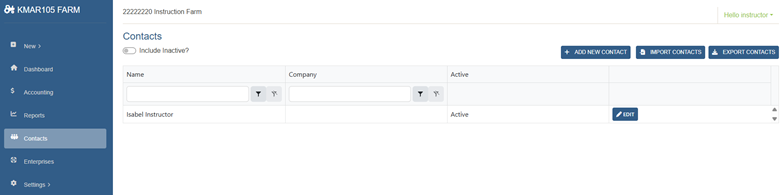
- In left sidebar click Contacts, to the right, + ADD NEW CONTACT
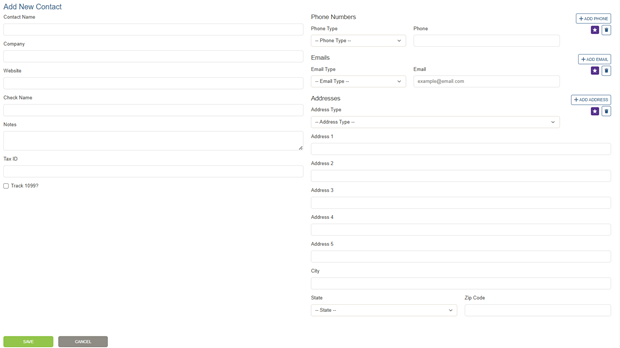
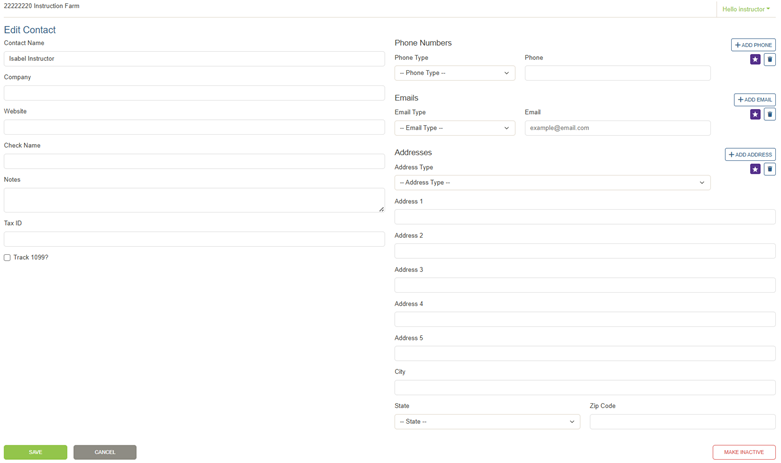
2. Add your contacts information. If they receive a 1099 for payments received, click the box and click save.
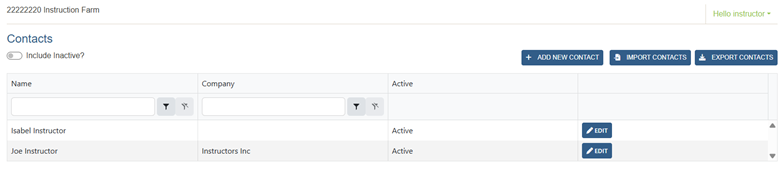
3. To edit a contact, go to left sidebar and click Contacts. Your contacts will display. To edit a contact, click on edit and your contact details will display
4. If you do not have transactions entered for your contact you can delete if necessary. If you simply need to make some changes, make those changes and click SAVE.
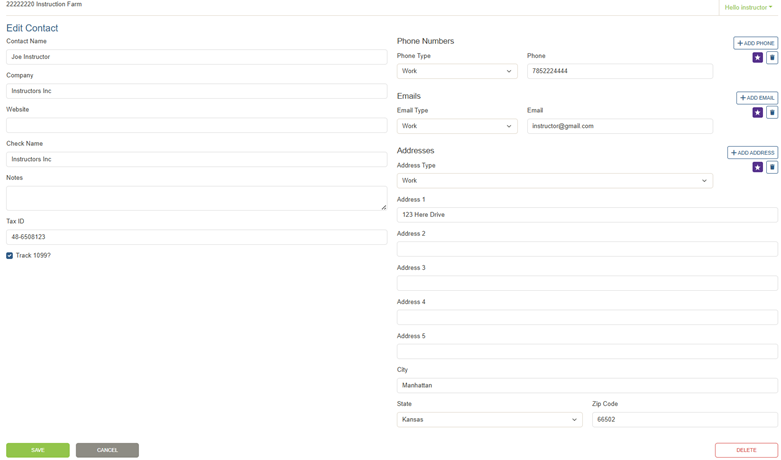
5. If you have transactions associated with a contact and you will no longer be using them you cannot delete them, however; you can make them inactive.
Was this article helpful?
That’s Great!
Thank you for your feedback
Sorry! We couldn't be helpful
Thank you for your feedback
Feedback sent
We appreciate your effort and will try to fix the article