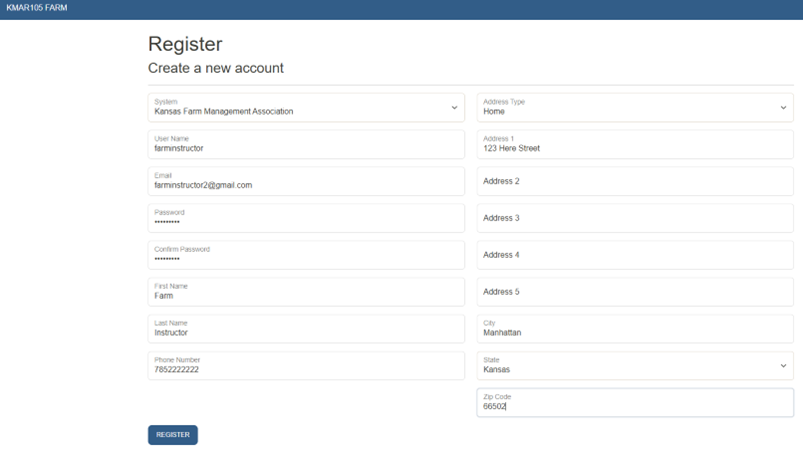
- Your user will need go to https://devfarmmgr.kmar105.com/ and select Register.
- Fill in the Register information and click Register. Have your user go to the email they entered.
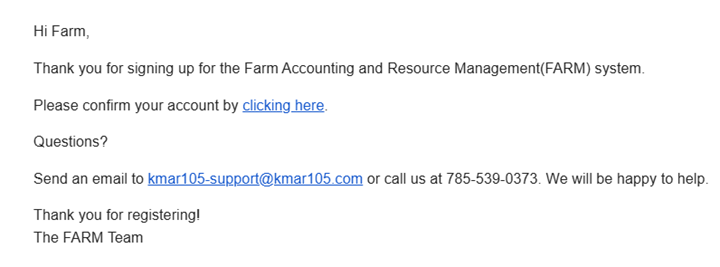
The email will look like this, please have them click, clicking here to confirm the account. They are now set up and you are ready to add the user.
3. On your computer log in to FARM
4. Select the Entity in which you would like to add a user for.

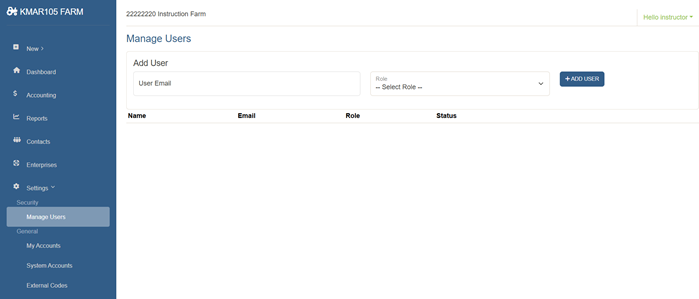
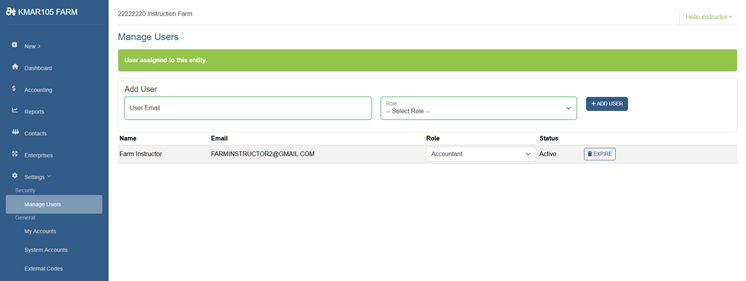
5. Click Settings, Manage Users, enter your user’s email address and what role they will have. Click Add User.
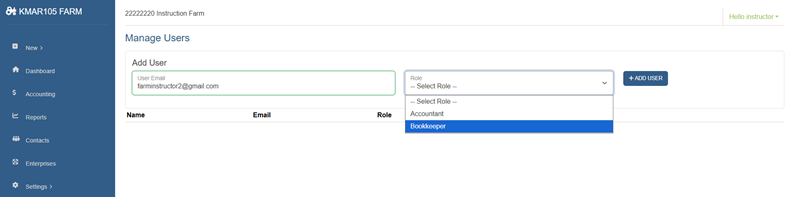
Roles explained:
Accountant – Have full access to the program for entities the have permissions for
Bookkeeper – Have access to enter checks, deposits, transfers and credit cards. Can make updates to contacts, enterprise codes and external codes.
7. To remove a user, click Settings, Manage Users and select Expire.
Was this article helpful?
That’s Great!
Thank you for your feedback
Sorry! We couldn't be helpful
Thank you for your feedback
Feedback sent
We appreciate your effort and will try to fix the article